Can you print this AI-edited photo? Check pixels and crop first
An image can look convincing on a phone and still be unsuitable for the print you have in mind. Before ordering, check the exact saved file, its pixel dimensions and the composition at the intended size. A label saying 300 DPI is not a print-quality test.
Start with the exact saved file
Use the image you will send to the printer, not a screenshot of its preview. Read its width and height in pixels using an image-information tool you already have. Repeat this after your final crop or resize. Keep the original separately.
Adobe distinguishes pixel dimensions from printed resolution. File size in megabytes and screen zoom are not substitutes for those dimensions.
Calculate density at the intended size
Divide pixel width by print width in inches, and pixel height by print height in inches. Convert centimeters to inches by dividing by 2.54. This gives pixels per inch, or PPI, on each axis. Use dimensions after the intended crop; do not stretch an image to make the numbers fit.
Changing only a resolution label does not add pixels. Resampling does change the pixel count; it is a separate operation, not proof of better detail. See Adobe’s explanation of size and resampling.
A measured example, not a print test
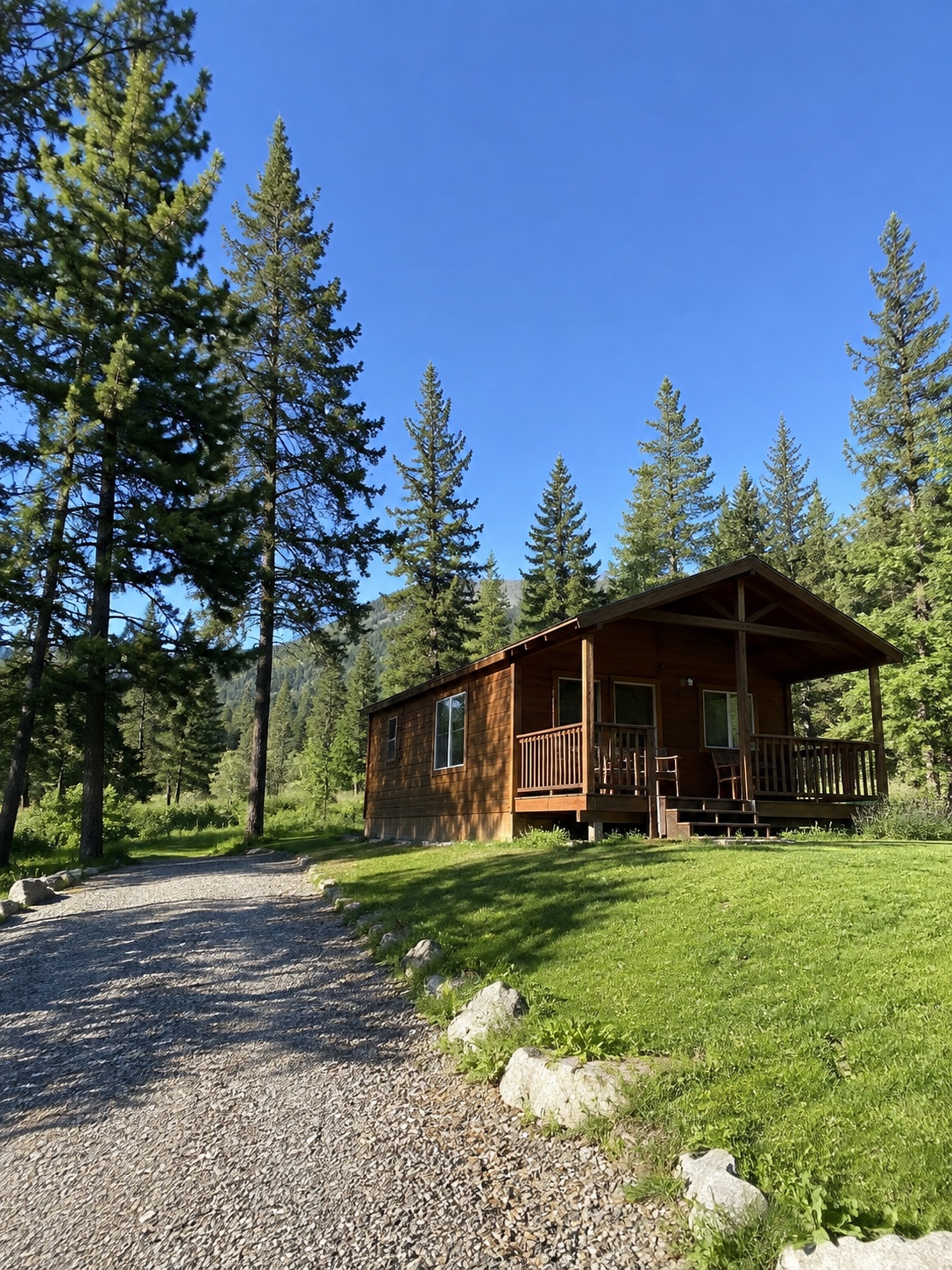
This file’s 1086 × 1448 pixels have a 3:4 aspect ratio. Without cropping or resampling:
| Print size | Calculated density |
|---|---|
| 3 × 4 inches (7.62 × 10.16 cm) | 362 PPI on both axes |
| 6 × 8 inches (15.24 × 20.32 cm) | 181 PPI on both axes |
The larger print spreads the same pixels over more space. These numbers do not certify sharpness, color or the quality of generated details. They also say nothing about the dimensions of your Lumia export.
Choose the crop or borders first
A 4 × 6 inch print has a 2:3 ratio, different from this 3:4 photo. Filling that shape requires a crop; fitting the entire photo requires unused space or borders. Inspect the actual print preview so the cabin, porch or another important subject is not cut off. Check whether the print service adds any further crop for borderless output.
Epson’s guidance explains that suitable resolution depends on viewing conditions and that cropping affects available pixels. Ask your printer or service for the requirements of the selected size, paper and process; 300 PPI is not a universal guarantee.
Check the final file before committing
Confirm the saved dimensions, crop, orientation and chosen print size together. Inspect small details as well as the whole composition. If quality matters, assess a proof at the intended size before ordering more copies.
Lumia is presented as a creative photo editor in its current App Store listing. This guide has not tested its current export dimensions, print controls or upscaling quality. Apply the checks to your actual saved file rather than assuming a preset or feature exists.