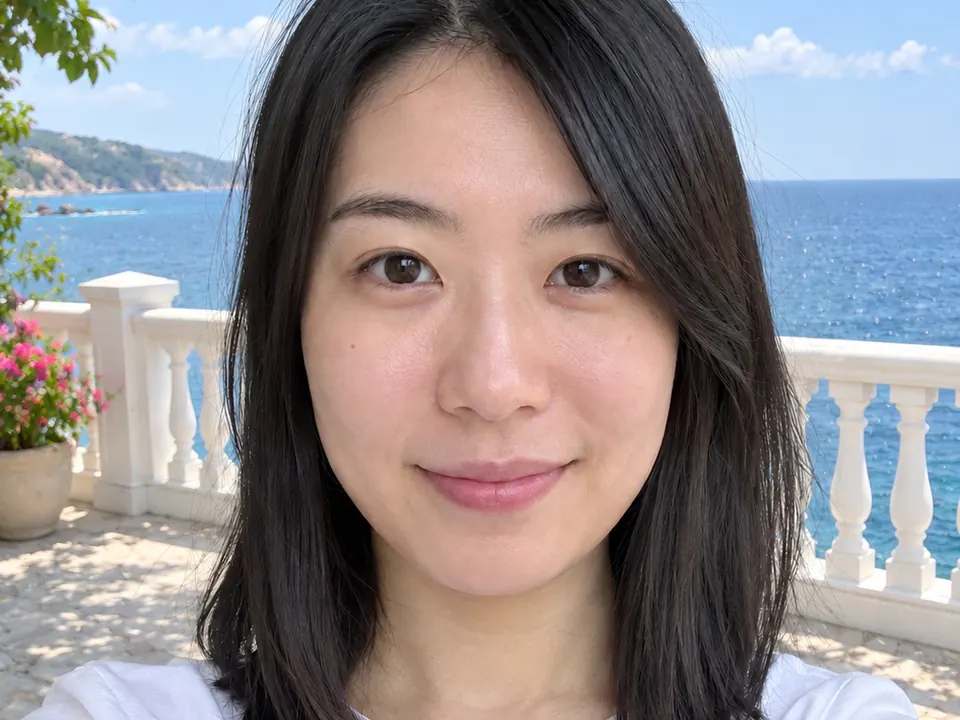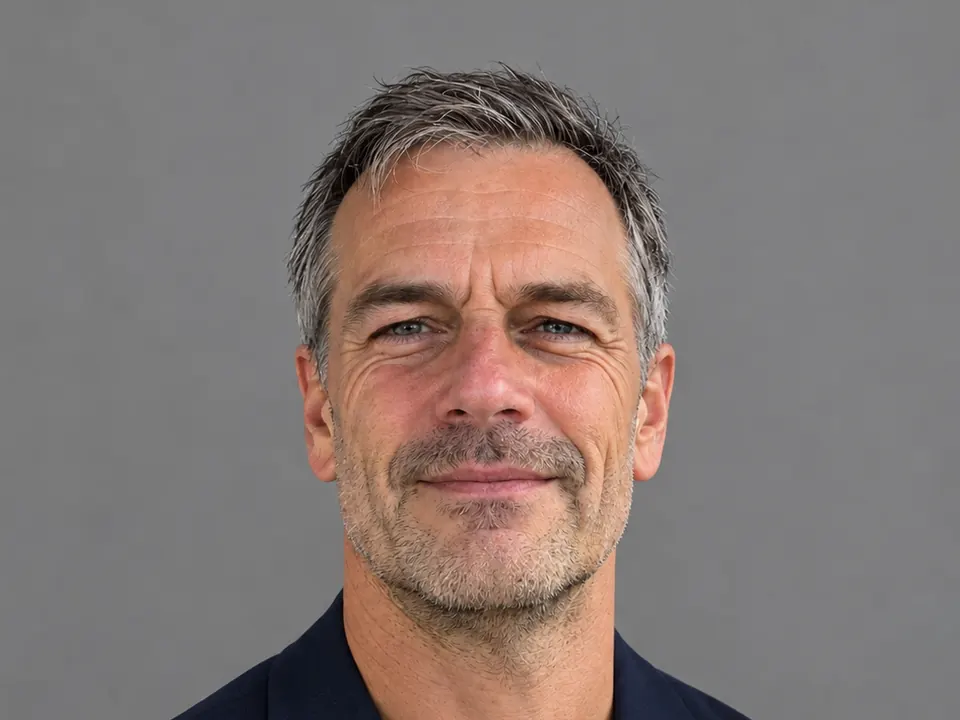
Attach a sharp selfie in the Lumia chat and ask for a plain background, the clothes you would wear to work and soft front light, then tell it to keep your face, hair and age exactly the same. The goal is not a better-looking stranger but the person a recruiter will meet on the next video call, photographed properly.

What you need
- One sharp selfie, lit from the front, with your whole face visible. Take off sunglasses and keep hair and hands away from your eyes.
- Only you in the frame. In a group shot, people can’t tell which face is yours, and the edit is harder too.
- A photo of yourself. A headshot for someone else is fine only if they asked for it.
- A recent photo. Your hair, glasses and beard should match how you look now.
Hold the phone at eye level, about an arm’s length away. A window in front of you is better than a ceiling light above you. Harsh light is fixable, but a blurry face is not.
How to do it in Lumia
- Sign in and open the chat. The empty screen asks “What should we create?”
- Attach your selfie and type your request (formula and examples below). Send it.
- Compare the result with your original photo. Check eyes, nose, teeth, hairline and jaw before anything else.
- If the face has drifted, say so in the chat and ask again. If it looks right, tap Edit to fine-tune: AI Enhance (free Local mode or the cloud mode) can bring back detail, and Crop gets you to a head-and-shoulders frame. Retouch is there too; it needs one clear, front-facing face, and a light touch is enough.
- Tap Save. The result also stays in History, so you can come back and make another version.
Requests that work
A good request has four parts: what to do, what changes, the look, and what must stay the same. For a CV photo, the last part does the most work. Always end with something like “keep my face, hair, age and expression exactly the same.”
This first request matches the hero example above:
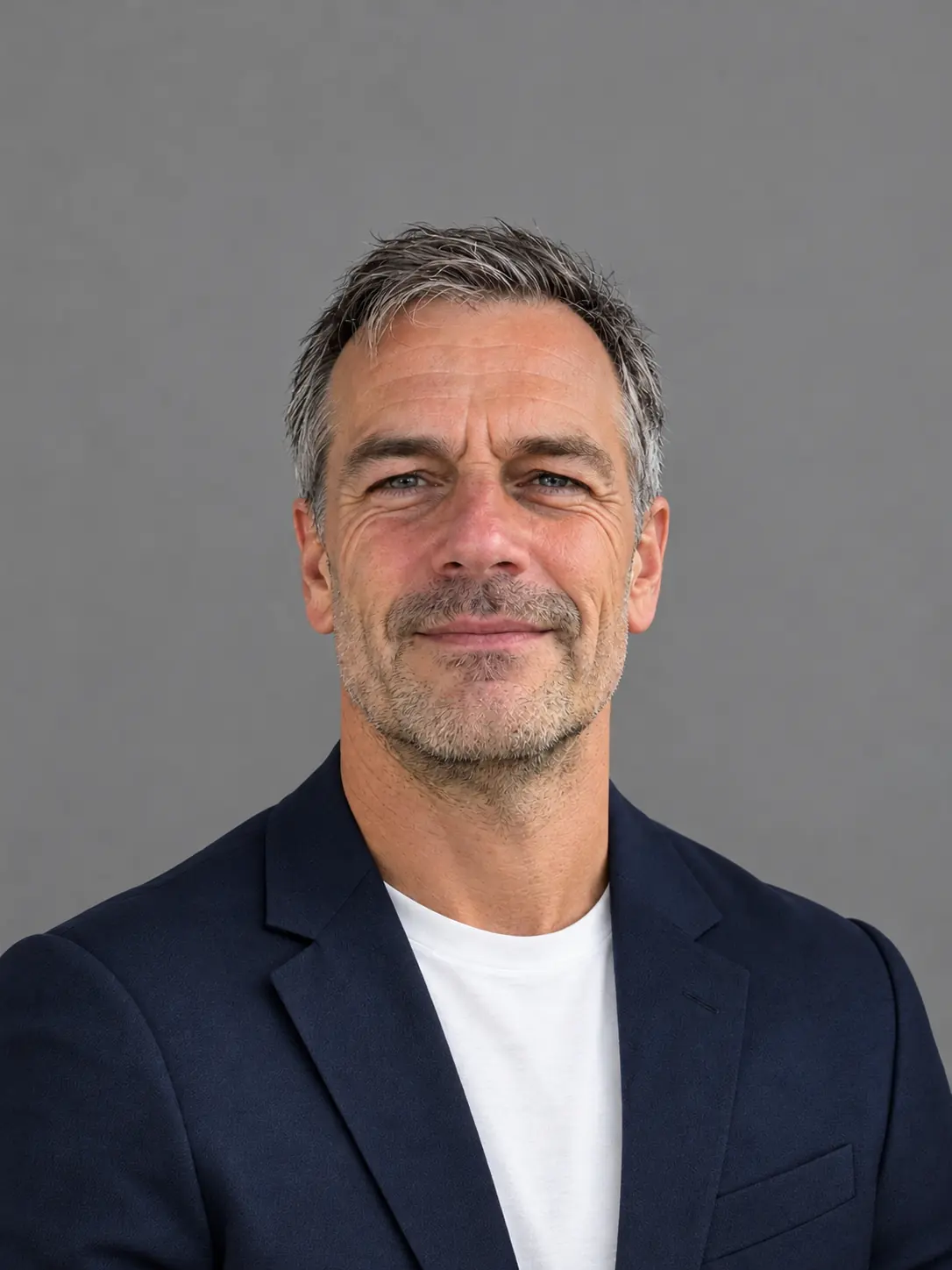
Turn this selfie into a head-and-shoulders CV photo: plain mid-grey background, navy blazer over a white shirt, soft even light from the front. Keep my face, hair, age and expression exactly the same.
If a studio look is too formal for your field, an outdoor version reads as friendly and still professional:
Make this a LinkedIn photo outdoors in soft daylight, with a blurred office building behind me. Dress me in a navy blazer. Keep my face, hair, age and expression exactly the same.

If you like your own clothes and only hate the light, ask for less:
Only fix the lighting: remove the harsh sunlight and hard shadows on my face and make the light soft and even. Keep my face, hair, clothes and background exactly the same.
For a plain background without changing anything else:
Replace the background with a plain light grey wall. Keep me, my clothes, my face and my expression exactly the same.
Ask for clothes you really wear to work. If you never wear a blazer, a plain sweater or shirt in one solid colour looks more like you, and a solid colour keeps attention on your face better than a busy pattern. Once you have a background you like, use the same one on your CV, LinkedIn and email profile, so people recognise the photo.
Refine it
Change one thing per message, so you can see what each change did.
My face looks slightly different. Go back to my real face from the original photo and change nothing else.
Crop tighter, from the top of my shoulders to just above my head.
Make the blazer charcoal instead of navy. Keep everything else the same.
That crop follows LinkedIn’s own advice that your face should take up at least 60% of the frame. A distant shot turns into a dot in the small profile circle.
A CV photo has one job: to help people recognise you. Fixing the light, swapping a hoodie for a blazer and replacing a car interior with a grey wall change the setting, not you. Don’t ask to look younger or slimmer, to change your nose, eyes, teeth or jaw, or to drop glasses or a beard you wear every day. If you used Retouch and your skin looks like plastic or a scar has vanished, go back to the version without it.
Limits to know
- Results in Lumia vary from one run to the next. Two tries with the same request can give different blazers, light or crops.
- AI edits can slightly change small facial features, ears, glasses frames and hair at the edges. Check them at full size before you save.
- Chat takes at most two photos per request: your selfie and one reference, such as a photo of a jacket you want to wear.
Before you share
FAQ
Is it OK to use an AI-edited photo on a CV or LinkedIn?
A cleaned-up photo is fine as long as it still shows what you really look like. Changing the light, the background or your jacket is like dressing up for a shoot. Changing your face is not.
Why does my face look slightly different after the edit?
AI image tools redraw the whole picture, so small details can drift. Send a follow-up asking it to go back to your real face from the original, or start again with a sharper, front-lit selfie.
Can I wear a specific jacket I own?
Try the “Wear my outfit” style, which uses your photo and a photo of the clothing. Or attach the clothing photo as your one reference in the chat and say “dress me in this jacket, keep my face exactly the same.”
Do I need to pay?
Lumia is free to download. AI tools use credits, and saving or sharing a result may ask for a subscription or a one-time unlock. The Local mode of AI Enhance is free.
What background colour should I choose?
Plain and calm: mid-grey, light grey or a soft blur. Anything that keeps attention on your face works.