Background removed, but still white? Check the file—not just the preview
A white rectangle does not tell you where the problem started. It may be the viewer’s canvas, an opaque exported background, or a changed copy. Before removing the background again, test the exact file you intend to use. This checklist works independently of Lumia.
Separate three different things
Background removal selects what should remain. Transparency records which parts of the saved image should let a new background show through. The viewer still needs a canvas on which to display that image. A white or gray preview alone cannot establish whether the file contains transparent areas.
PNG can preserve transparency, but the filename alone does not prove that it does. JPEG does not support transparent pixels. Renaming a JPEG to .png does not restore transparency. Adobe explains the difference between transparency and a matching matte color.
Test the exported file on two backgrounds
Keep the original photo and save a separate result. In an editor you already use that supports transparent images and layers:
- Import the exact saved file above a solid dark background.
- Change only that background to a light color.
- Check outside the subject, between separated parts, and around fine edges.
If both background colors show through outside the subject, those areas are transparent in this test. If the same white rectangle or checker pattern remains, inspect the imported file and the receiving editor’s settings. A painted checkerboard is still image content: Adobe’s PNG guidance distinguishes it from true transparency.
Do not confuse an edge problem with a solid background
A narrow pale fringe around hair or clothing is different from a full opaque rectangle. Compare at normal viewing size and close up. Decide whether the issue is the cutout edge, a background baked into the file, or the receiving tool’s display. Do not repeatedly erase the subject to solve a display problem.
Follow the same file into the next app
Compare the original export with the copy you imported or shared. Record the filename, format and route between apps. Test the original file directly rather than a screenshot of its preview. A screenshot records what was displayed, not the original cutout’s transparency.
If the original works but a transferred copy does not, investigate that transfer or import step before repeating the edit. If neither works, check the exporting app’s supported formats and transparency settings. Do not assume a social platform preserves transparency or that a setting in another app exists in yours.
What the Lumia example does—and does not—show
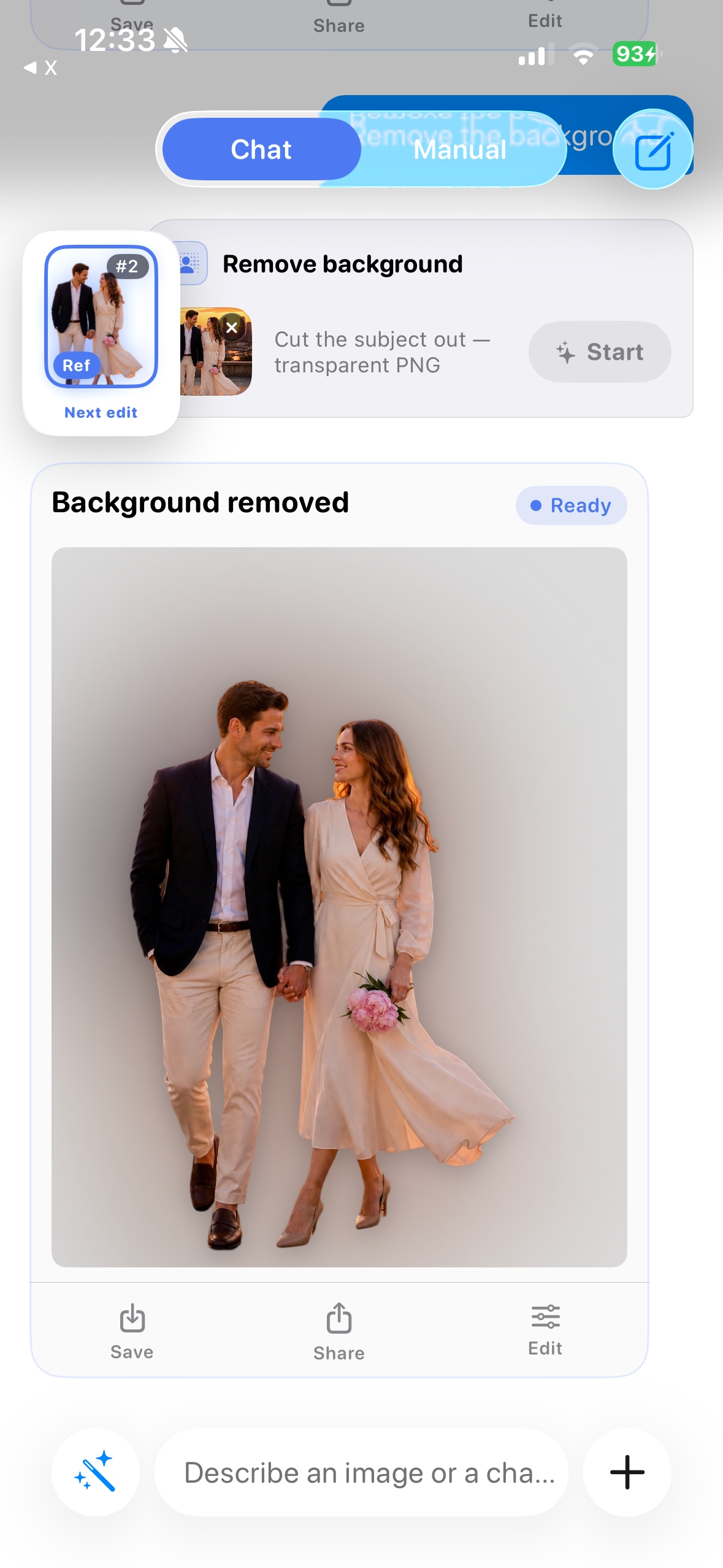
Lumia’s existing overview shows background removal. The earlier interface above labels the operation “transparent PNG,” but this JPEG screenshot cannot verify the saved result’s alpha channel. This guide does not claim to test the current export menu or promise that every sharing route preserves transparency.
For a reproducible support report, note the app and iOS versions, export choice, destination app, and whether the original export and transferred copy behave differently. Do not include private photos unless you choose to share an appropriate example.