How to Ask AI for One Photo Edit Without Changing Everything Else
You want to remove a bag from the background, not change your face. Or you want a different jacket, not a different person. A useful AI photo-editing request makes that distinction explicit: describe one change, locate it, and name the details you want to preserve.
Clear instructions help communicate your intent, but they do not guarantee that an AI editor will leave every other pixel untouched. Treat each result as a new image to inspect—not as an automatically faithful copy of your original.
Start with one visible change
Before writing a prompt, complete this sentence:
In this photo, I want to change ___, while keeping ___ the same.
For example:
Remove the red shopping bag on the floor to the left of the chair. Keep the person, chair, wall, lighting, and framing unchanged.
This is more specific than “clean up the photo.” The broader phrase leaves room for the editor to change skin texture, colors, objects, or composition that you did not intend to alter.
If you also want brighter lighting and a new background, save those requests for later. Working on one change at a time makes it easier to notice what went wrong and decide whether to keep the result.
Give the editor three pieces of information
A focused request has three parts:
- The target: which object or region should change?
- The change: what should happen to it?
- The constraints: what important details should remain?
Use ordinary visual descriptions. “The blue jacket worn by the person on the right” is clearer than “that one.” If several objects look alike, include their positions and nearby landmarks.
Here are illustrative prompts, not tested results:
- Remove an object: “Remove the empty cup beside the laptop. Reconstruct the tabletop in that area. Keep the laptop, hands, and rest of the desk unchanged.”
- Change an item’s color: “Change only the blue jacket to dark green. Keep its shape and texture, and preserve the face, hair, hands, and background.”
- Replace a small detail: “Replace the blank label on the jar with a plain cream label. Keep the jar’s shape, reflections, and surrounding objects unchanged.”
Keep the list of constraints relevant. For a small background edit, preserving the subject and framing may matter more than listing every object in the photograph.
Use a selected area when the change is local
If your editor offers an area-selection or inpainting tool, it may be a better fit for removing or replacing a small object than a request to reinterpret the whole photograph. Mark the intended region carefully, using the editor’s own instructions.
A selection still needs review. An edit near a person’s outline, a reflection, or a patterned surface can affect details that are easy to miss at first glance. Check the boundary around the edited area as well as its center.
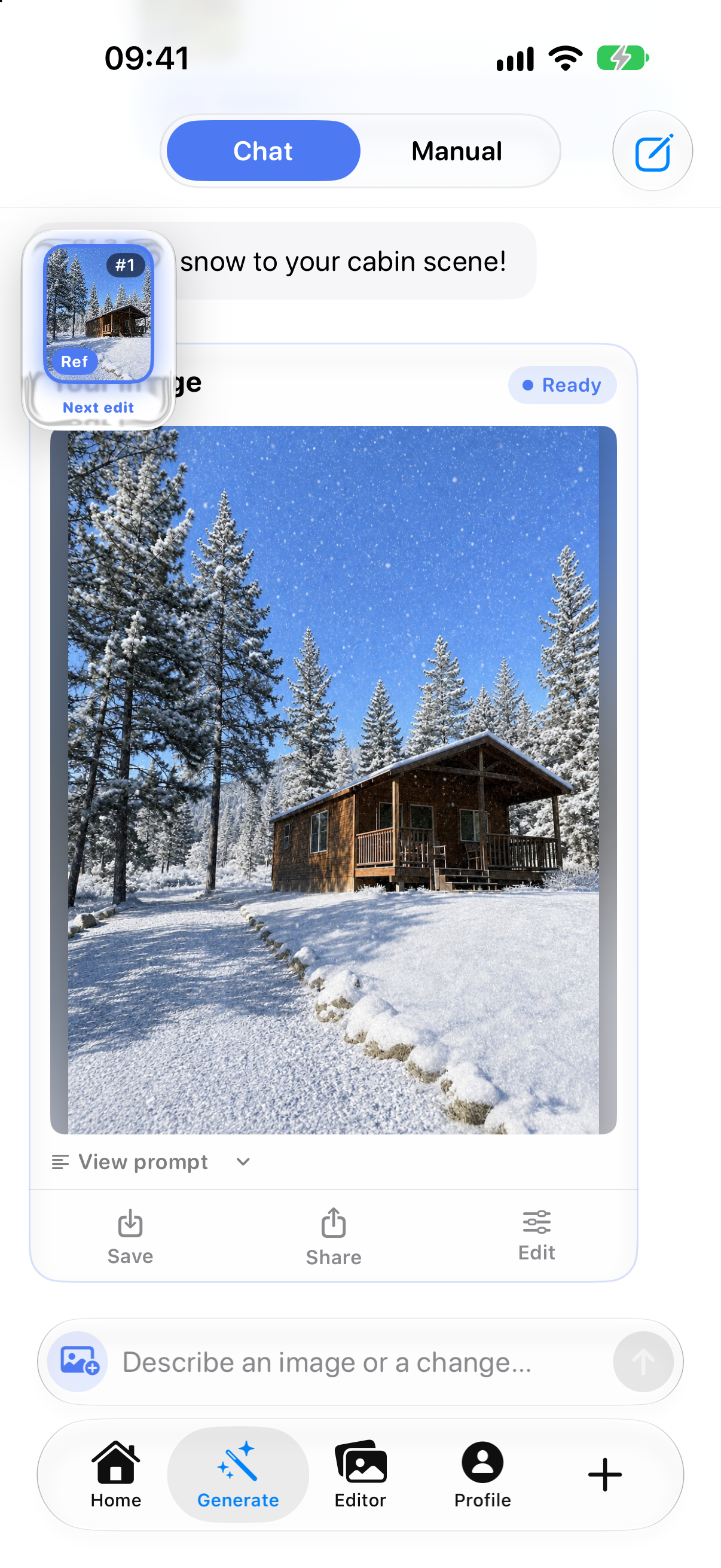
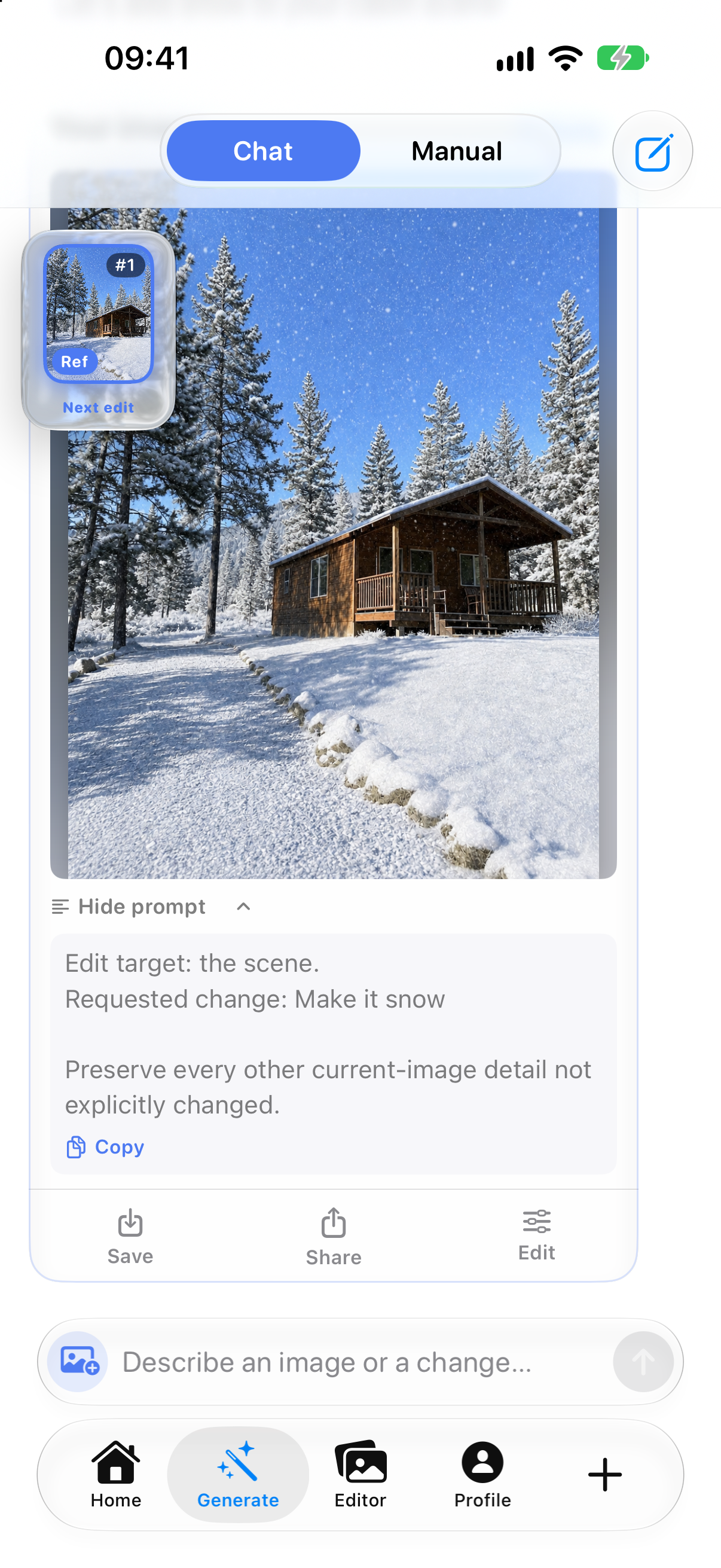
Lumia’s App Store listing describes Chat Vision and area-based Inpaint editing in version 1.2.6. It also describes mask refinement and blending controls. Those features provide different ways to express an editing request; they are not a promise of exact preservation.
Compare before you continue
Keep the original photo available and compare the result against it. Look beyond the thing you asked to change:
- Did the face, expression, hair, or hands change?
- Are the subject’s outline and clothing details still consistent?
- Do shadows and reflections make sense?
- Are straight edges, repeating patterns, and nearby objects intact?
- Did any text, logo, or small identifying detail become distorted?
- Is the framing still the same?
Zoom in for small defects, then look at the whole image again. A patch can look plausible up close yet feel wrong in the full composition.
If too much changed, narrow the request
Do not keep adding corrections to an image you no longer trust. Return to the original or the last version you accepted, then reduce the scope of the next edit.
Instead of “make this look professional,” specify the visible problem: remove one distracting object, adjust one item, or simplify one background area. If a selected-area tool is available, use it for a genuinely local change rather than asking for a complete scene transformation.
For photos used as evidence, records, or factual product representations, preserve the original and avoid presenting generated details as facts. For creative images, make sure you are comfortable with both the requested change and any incidental changes before sharing.
Try one focused request
Choose a photo you have permission to edit, identify one change, and write a short target–change–constraints prompt. Review the result before starting another edit.
Explore Lumia on the App Store, or return to the Lumia overview.
Inside Lumia
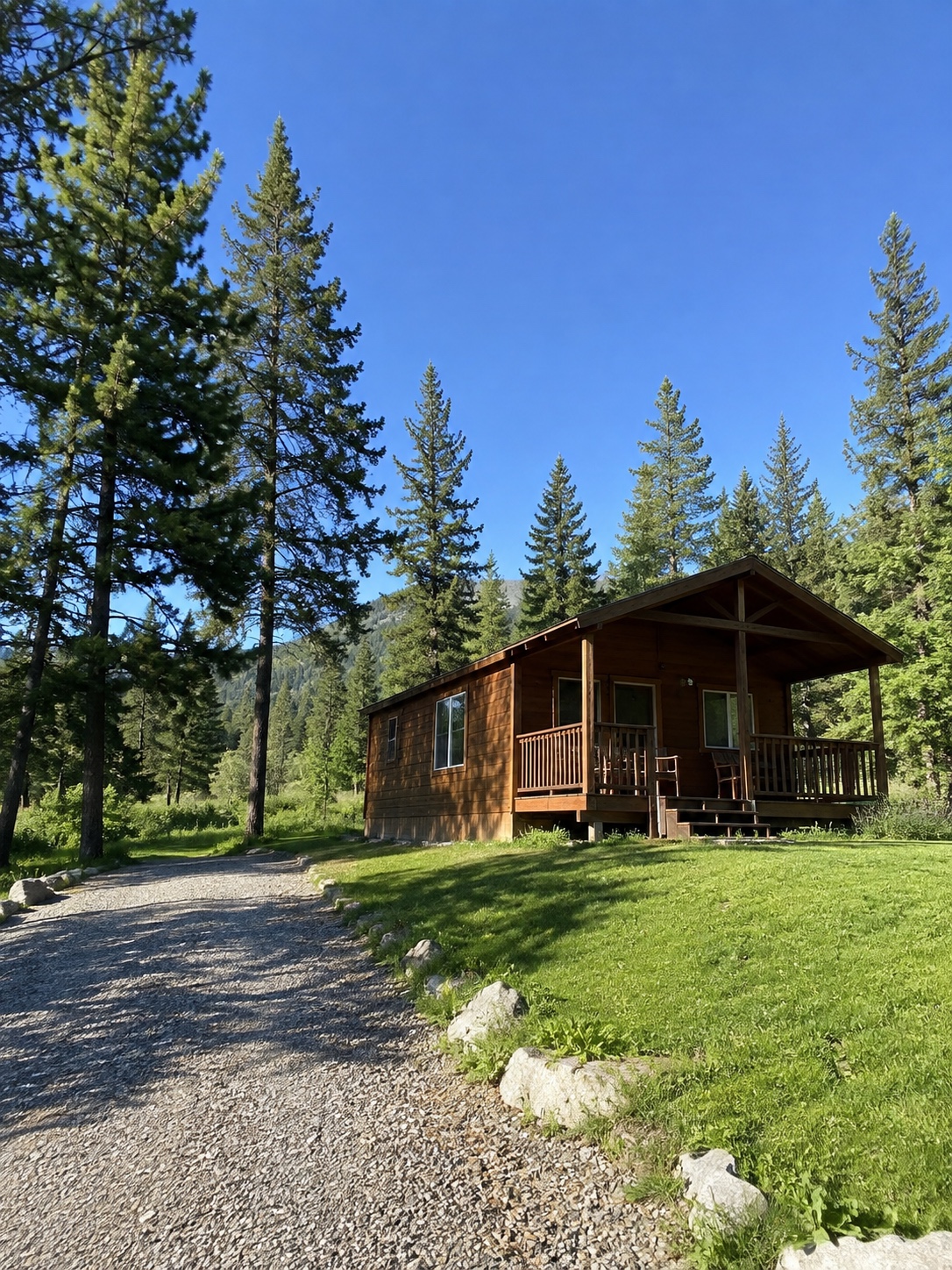
A recorded promotional example from the 1.2.6-era Generate → Chat workflow. Interface in English; the current app may differ. Results vary.