
Open the photo in Lumia’s editor, tap Remove BG, pick the subject, soften the edges, and apply. Then check the cutout on a light and a dark background, and if you want a new scene, attach it in chat and describe where it should go.
What you need
A clean cutout starts with a good photo. Before you begin, check yours:
- Sharp. Blurred edges stay blurred after the cut. Tap to focus on the subject when you shoot.
- Front-lit. Light falling on the subject, not behind it, keeps the outline clear.
- Fully visible. If you are cutting out a person, keep the face and body in frame, with no cropped hands, feet or wheels.
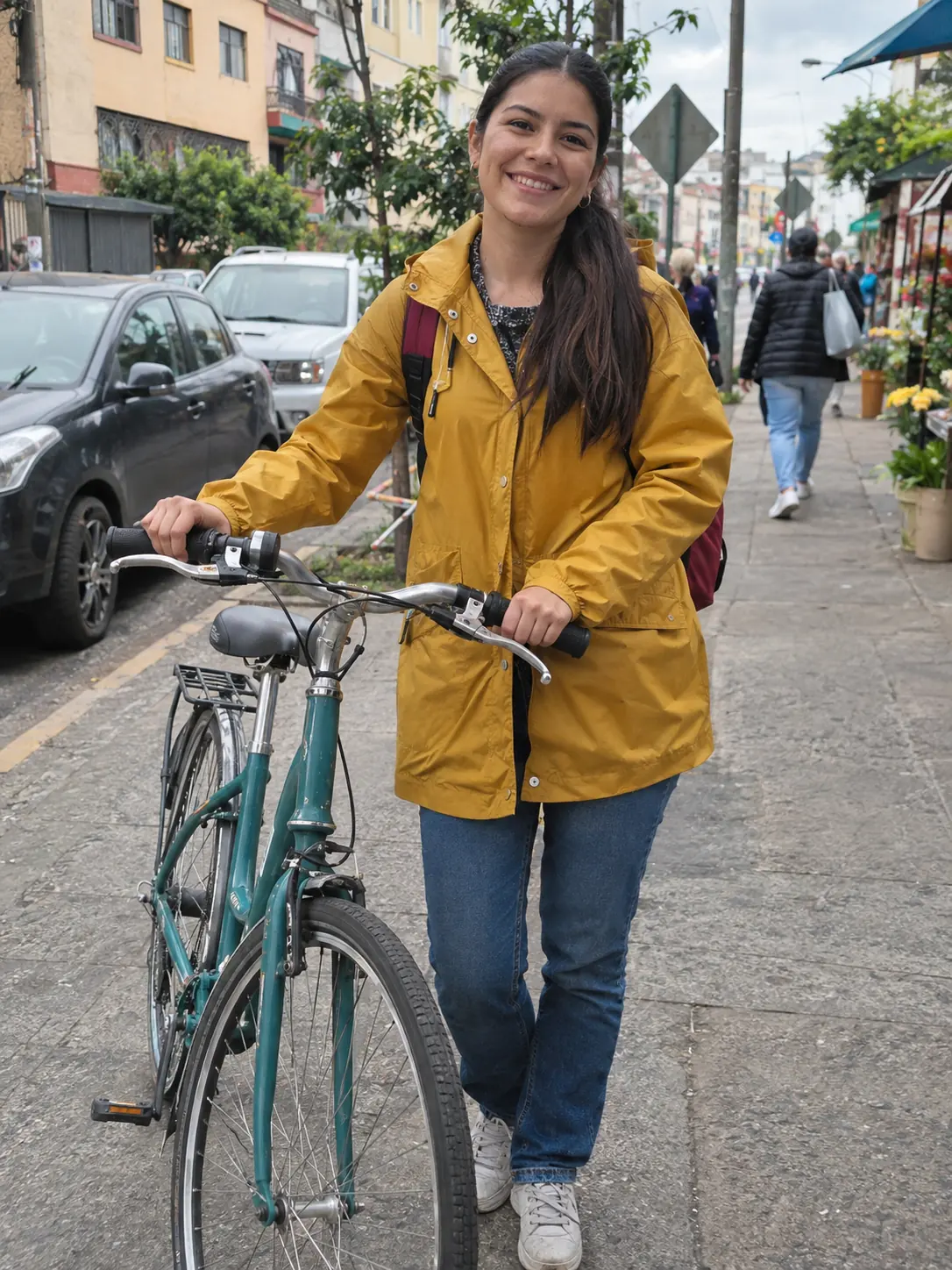
- One main subject. A person, a person with one object (like the bike above), or one product. Crowds are harder to separate.
- Some contrast. A dark coat against a pale wall separates more easily than a grey coat against grey concrete.
Use your own photo, or a photo of someone who agreed to be edited.
How to do it in Lumia
- Open Remove BG and choose a method. Open your photo in the editor and tap Remove BG. Pick a free on-device method, which runs on your iPhone, or AI (Server), which the app describes as “Best quality, processed in the cloud” and which uses credits. Start with the free one and switch only if the edges come out rough.
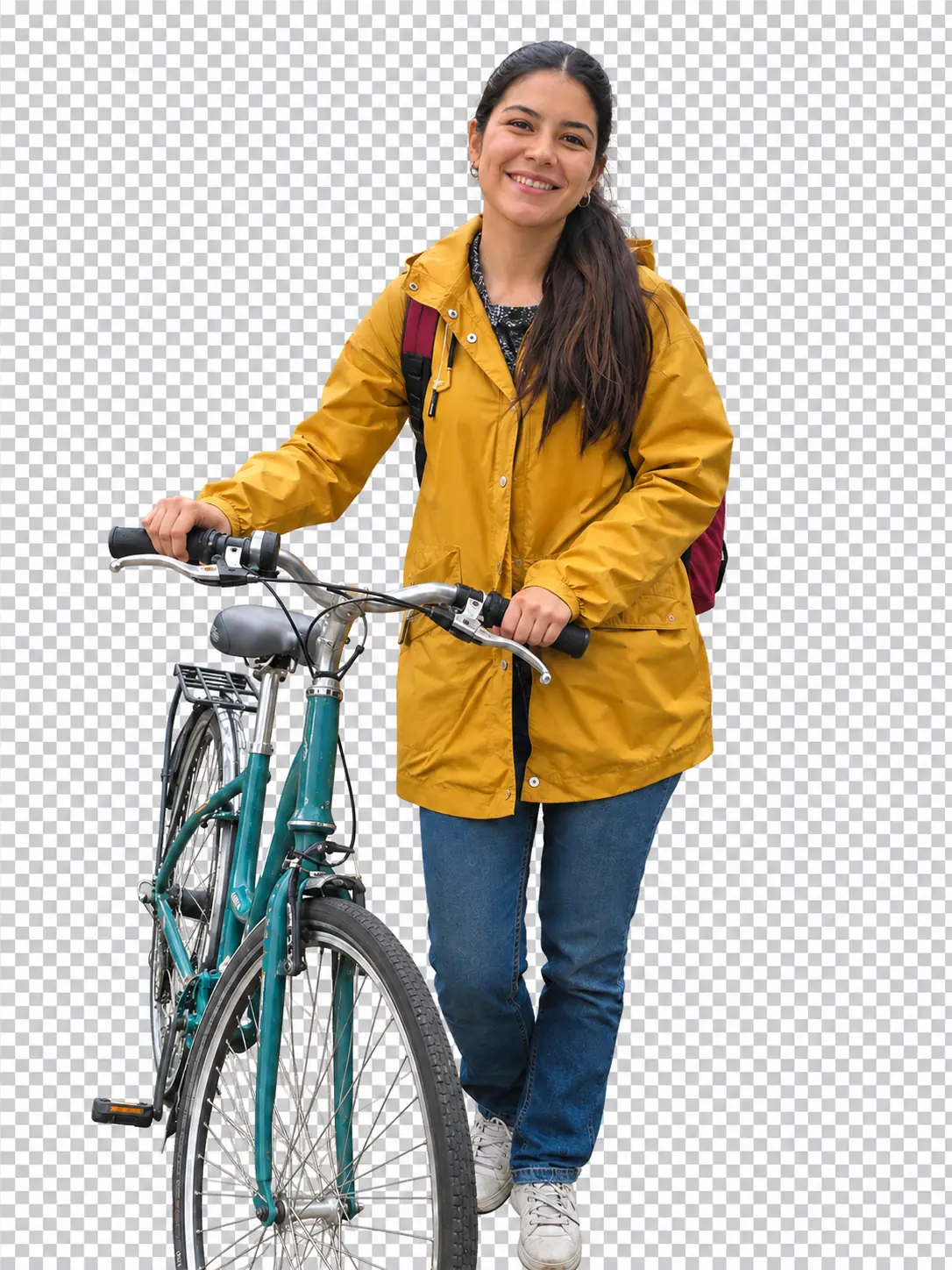
- Choose what stays. With the on-device method, the app first runs Detect Objects to find what is in the photo. At Select Objects, you choose which of the found objects to keep. For the photo above, keep both the woman and the bicycle, or the bike will vanish with the street.
- Clean the edges. At Refine Edges, move the Edge Softness slider. A little softness helps hair and fabric blend into a new background. Too much makes the outline look hazy. Zoom in on hair, fingers and bike spokes before you go on.
- Apply and save. At Preview & Apply, look over the cutout, apply it, then save it. Saving may ask for a subscription or a one-time unlock.
- Test the cutout before you use it. Image editors usually show transparent areas as a grey and white checkerboard. Open the saved file in an app that supports layers and place it over a light color, then over a dark one. Both colors should show through around the subject. A pale halo on the dark color or a dark fringe on the light one means you should go back and change Edge Softness.
Put the cutout somewhere better
A transparent cutout is ready for a sticker or a layout. For a new scene, use chat. Chat needs you to sign in. On the empty screen it asks “What should we create?”. Attach your cutout (or the original photo) and describe the new background.
A request that works has four parts: the action, what changes, the look you want, and what must stay the same. For example: “Put me on a studio backdrop (action and change), soft pastel peach with a floor shadow (look), keep my face, coat and bike exactly the same (what stays).” That last part matters most. Without it, the edit may change details you wanted to keep.
Put me and my bicycle on a clean pastel peach studio backdrop with a soft shadow on the floor. Keep my face, hair, raincoat and bicycle exactly the same.

For an object you want to sell, ask for a plain, even background:
Put this item on a plain white background with a soft shadow underneath, for a product listing. Keep its shape, color, logo and details exactly the same.
To place yourself in a real place you have a photo of, attach that photo as the second image. Chat takes up to two photos per request: the one you edit and one reference.
Place me from the first photo into the park in the second photo, standing on the path. Match the light and shadows of the park. Keep my face, hair and clothes exactly the same.
For products, the Product Photo card in the Discover row is another place to start.
Refine it
When the result is close but not right, send one change at a time in the same chat. One change per message makes it easy to see what each request did.
Make the floor shadow softer and a little shorter. Keep everything else the same.
Make the backdrop a slightly warmer peach. Keep me and the bicycle exactly the same.
Move me a little to the left so there is more empty space on the right. Do not change my pose.
Each result has Edit, Save and Share, and it stays in History, so you can come back and try another background later.
Limits to know
- Very fine detail, such as flyaway hair, thin spokes, lace or glass, is the hardest part of any cutout. Expect to adjust Edge Softness or try AI (Server).
- A new background through chat is a new image, not a pasted layer. Small details can shift, so compare it with your original.
- Results in Lumia vary from photo to photo. A sharp, well-lit photo with one clear subject gives the most reliable cutouts.
Before you share
FAQ
Is removing a background free?
The on-device method in Remove BG is free. The AI (Server) method uses credits, and saving or sharing a result may ask for a subscription or a one-time unlock. Lumia itself is free to download from the App Store.
Why does my cutout look white or grey in another app?
Some apps ignore transparency and show it as white, and a checkerboard can also be painted into the picture rather than mark real transparency. Test the saved file on a light and a dark background. If neither color shows through, the transparency was lost along the way, often when the file was converted or screenshotted.
Can I cut out an object instead of a person?
Yes. Remove BG works on a clear main subject such as a lamp, a bag or a pair of shoes. At Select Objects, keep only the item and drop anything else the app found.
Which method should I choose?
Try the free on-device method first. If hair or fine edges look rough after Refine Edges, run AI (Server), which the app describes as best quality.
What do I need to run Lumia?
An iPhone with iOS 18 or later. Remove BG works in the editor; adding a new background through chat needs you to sign in.